How to Enter Full-Screen Mode in Your Hotwire Native App? - Part 2 iOS
In my last post, we learned how to enter full screen mode on Android. We used two methods. First, we setup a Bridge Component to toggle full-screen mode with a button and then we demonstrated using path configuration to trigger a full-screen view.
With iOS, it’s just as straightforward. We will start with Path Configuration and then move on to using a Bridge Component.
Prerequisites
I’m assuming that you are following along with the last post. I’m building on top of the iOS app built in this tutorial series.
Full-Screen on a Per-Page basis via Path Configuration
Unlike Android, this is baked into the path configuration. Simply add it as a path configuration rule and then you’re done.
module Hotwire
  module Ios
    class ConfigurationsController < ApplicationController
      def v1
        render json: {
          settings: {},
          rules: [
          ....
            {
              patterns: [
                "/work_outs/[0-9]+"
              ],
              properties: build_properites(
                context: "modal",
                modal_style: "full"
              )
            }
          ]
        }
      end

      private

      def build_properites(options = {})
        options
      end
    end
  end
end
obsidian://open?vault=_posts&file=full-screen%2Fios_path_configuration_full_screen.gif
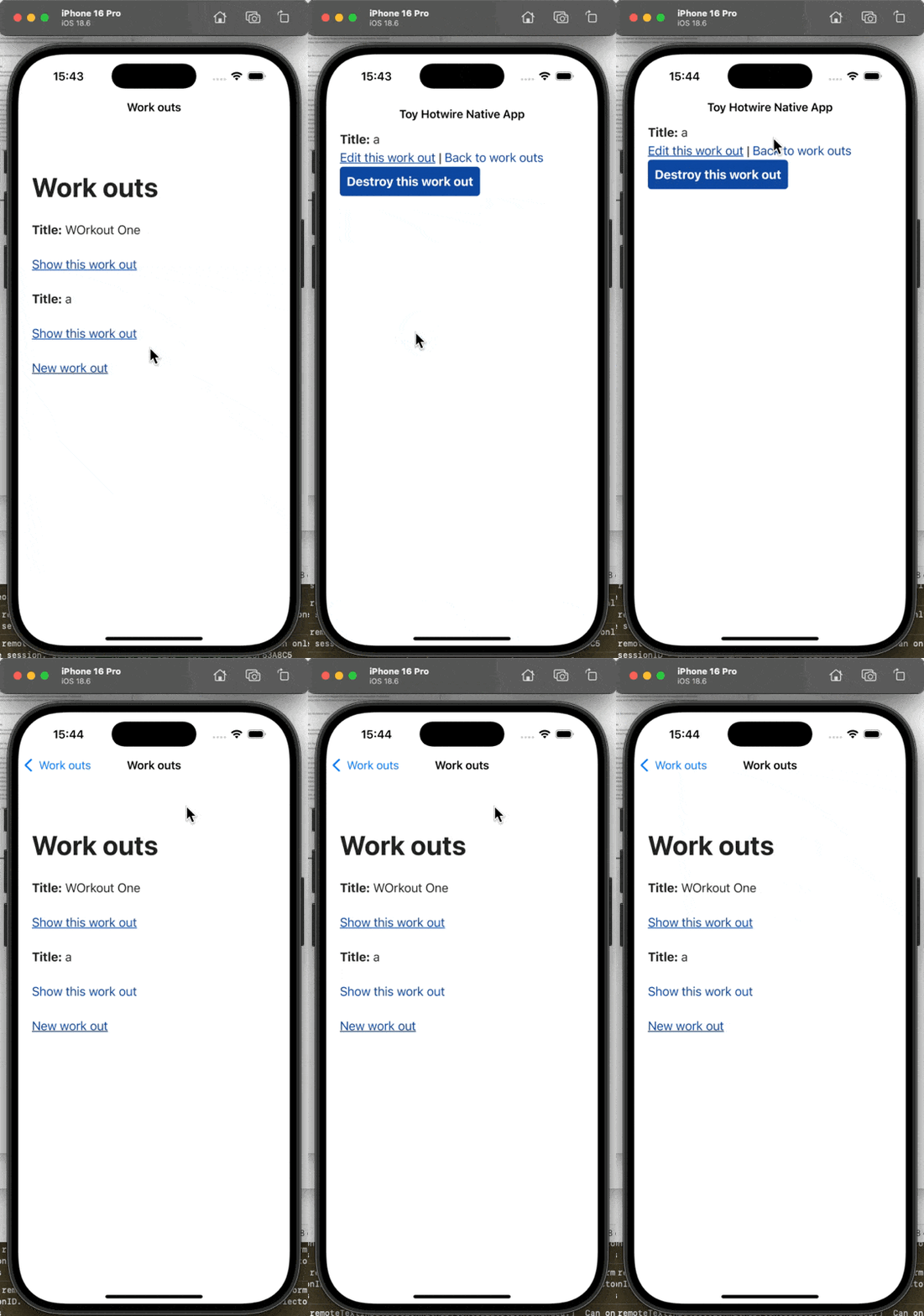
In this example, pressing the “Back to Work outs” link adds the root page on to the index stack. So you may want to add a button that pop the full modal off the stack gracefully.
Full-Screen via Bridge Component
Just like in the last article, we’re going to finish with our Bridge Component.
Create a new Folder called Bridge and underneath that, create the FullScreenComponent
import HotwireNative
import UIKit

final class FullScreenComponent: BridgeComponent {
    override class var name: String { "full-screen" }
    private var viewController: UIViewController? {
        delegate?.destination as? UIViewController
    }

    override func onReceive(message: Message) {
        guard let event = Event(rawValue: message.event) else { return }

        switch event {
        case .connect:
            handleConnect()
        case .toggle:
            handleToggle(message: message)
        }
    }

    private var isFullScreen: Bool {
        viewController?.navigationController?.isNavigationBarHidden ?? false
    }

    private func handleConnect() {
        reply(to: "connect", with: MessageData(isFullScreen: isFullScreen))
    }

    private func handleToggle(message: Message) {
        guard let data: MessageData = message.data() else { return }

        let shouldBeFullScreen = data.isFullScreen

        viewController?.navigationController?.setNavigationBarHidden(shouldBeFullScreen, animated: true)

        reply(to: "toggle", with: MessageData(isFullScreen: shouldBeFullScreen))
    }
}

private extension FullScreenComponent {
    struct MessageData: Codable {
        let isFullScreen: Bool
    }
}

private extension FullScreenComponent {
    enum Event: String {
        case connect
        case toggle
    }
}
Now, make sure to register the Bridge Component in the AppDelegate
@main
class AppDelegate: UIResponder, UIApplicationDelegate {

    func application(_ application: UIApplication, didFinishLaunchingWithOptions launchOptions: [UIApplication.LaunchOptionsKey: Any]?) -> Bool {
        // Override point for customization after application launch.
        ...
        Hotwire.registerBridgeComponents([
            FullScreenComponent.self
            ]
        )
        return true
    }
    ....
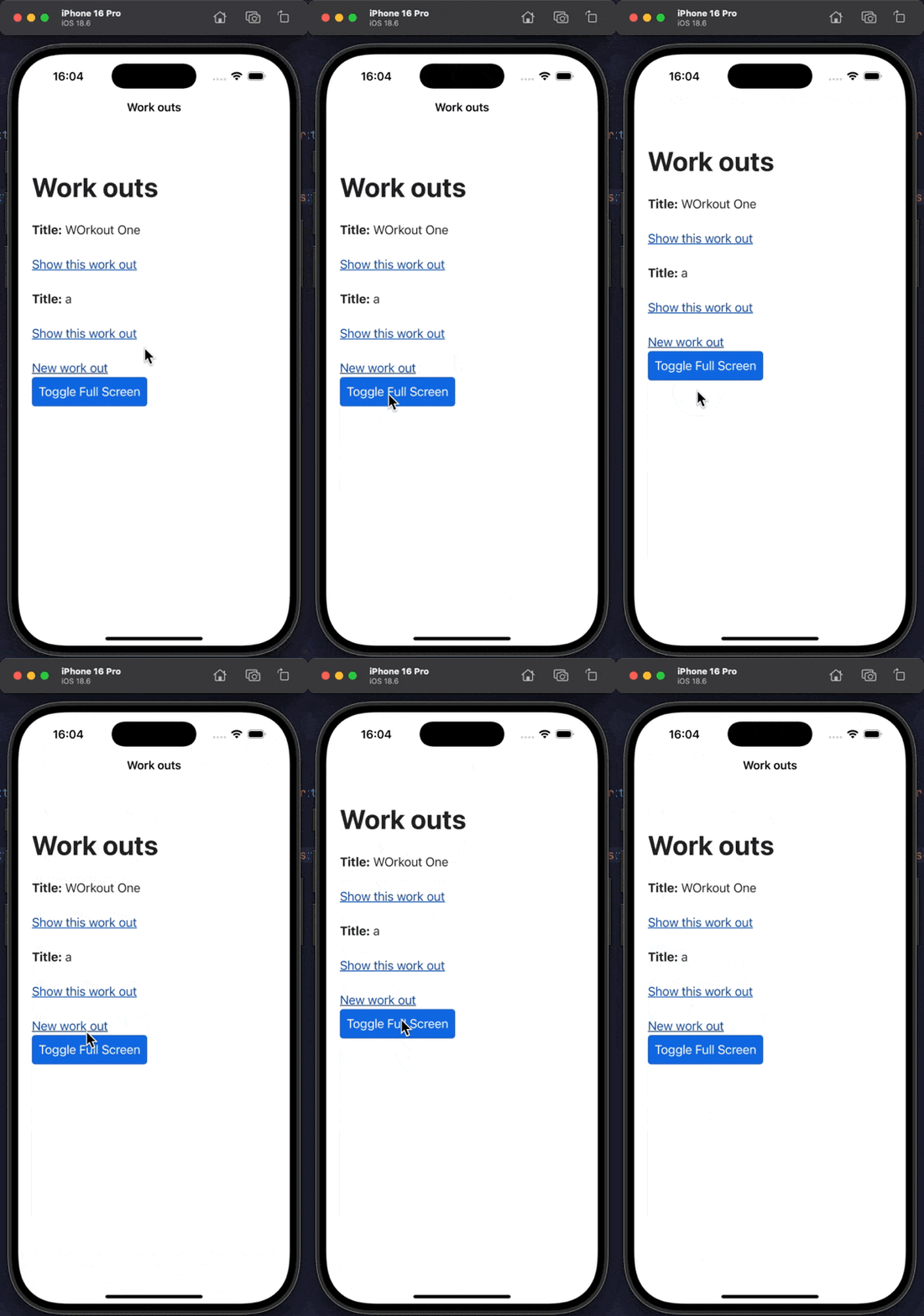
And voilá.
Happy hacking folks.